Chat and announcements
Members Group adminsCommunication in InOrOut is split between real-time group chat and sticky announcements.
Group chat
- Open a group and switch to the Chat tab.
- Read recent messages and scroll back through the available history.
- Type and send a message from the same screen.
- Watch new messages arrive in real time while other members are active.
Chat is only visible when it is enabled for that group. Notification behavior depends on the member’s notification settings and registered device.
If you have set yourself Hidden in a team (Profile and security), chat there becomes read-only: you can follow the conversation, but the composer is replaced by a note explaining why. Posting would put your name back in front of the very members you asked it to be kept from. Anything you posted earlier is replaced for those members by a line saying a member has hidden their information — admins still see it as written, and so do you. Change the setting back and your messages return.
Report a message
MembersIf another member writes something rude, threatening or otherwise out of line, you can hand it to the group’s admins.
- Press and hold the message.
- Choose Report to admins.
- Pick a reason — harassment, threats or violence, spam, hate speech, child safety, or something else. A child safety report is reviewed by the InOrOut team as well as the admins (see our Child Safety Standards).
- Add a note if there is anything the admins should know, then send. After a child safety report the app also shows a confirmation with a link to the standards and to the reporting hotline for your country.
Nothing changes for anyone else while the admins look at it: the message stays in the conversation until an admin decides what to do. You cannot report your own message, and you can report the same message only once.
If several members report the same message, the admins see one entry with all of you on it rather than a queue of copies.
A member’s name or profile picture, a public team’s profile and a Forum post can be reported the same way, and the admins handle all of them from the team’s User reports queue.
Block a member
MembersIf you would rather not see what one particular member writes, you can block them. It is your own setting and needs no admin.
- Press and hold one of their messages.
- Choose Block this member.
- Choose Block, or Block and report to send the message to the admins at the same time.
From then on you do not see their chat messages or their Forum posts, in this team or in any other team or group you share, and you get no notifications about their messages. They are not told, they stay in the team, and they still see what you write. Everything else is unchanged — you still see them in the member list and on events.
The same choice is on a member’s profile sheet in the Members tab and in the menu of a Forum post. To undo it, open Profile → Security → Blocked users.
Removing somebody from the team is a different thing, and only an admin can do it: see Blocked members.
Chat history limits
Free Pro Business- Free teams keep 14 days of chat history.
- Groups on Pro and Business keep their full history, up to the 12 months the platform stores chat for.
If a group returns to a lower plan or the feature is disabled in group settings, the chat experience becomes more limited even though older conversations may still exist in the backend history window.
System announcements
System announcements appear on the home screen and come from system administrators.
- Read them from the top of the home feed.
- Dismiss them when you no longer want them in your current view.
- Restore dismissed active announcements later from the home overflow menu.
Personal admin notices
Personal admin notices are a third type of notice that appears on the home screen. Unlike system announcements (which go to all users) or group announcements (which go to a specific group), personal admin notices are sent only to you and are triggered automatically by system admin actions on your account:
- your account is suspended or unsuspended,
- a Coach Pass is granted to or revoked from your account,
- a system admin makes a membership change on your behalf.
They appear as a swipeable carousel banner between the time-off banner and the system announcements banner. You can dismiss each notice individually. Dismissed personal admin notices can be restored from the same Restore dismissed announcements action in the home overflow menu — this action restores all three types (system, group, and personal admin notices) at once.
Group announcements
Group admins Pro BusinessGroup announcements are sticky messages managed by group admins. They appear inside the group experience and support dismiss and restore flows for end users.
Manage group announcements as an admin
- Open the group and go to the Admin area.
- Open the announcement management screen.
- Create, edit, or delete sticky announcements for that one group.
- Optionally set an expiry and send a push notification when publishing an update.
The filter icon in the top-right corner narrows the list to Draft, Scheduled, Published or Expired announcements. Each card already carries the same label, and the icon stays highlighted while the list is narrowed.
If an announcement is edited meaningfully, members can see it again as an updated item even if they dismissed the older version.
Announcements the app posts for you
Not every group announcement is written by hand. Some admin actions offer to post one as part of finishing the job, so the outcome is still readable after the notification has gone:
- Cancelling an activity planning can post the cancellation, along with the reason the admin gave. See Activity planning.
- A prize draw can post its result, naming every placing. Re-drawing or deleting that draw takes the announcement down again, and can put a short-lived one in its place saying the result no longer stands and why. See Prize draws.
These behave like any other group announcement once posted: they can be dismissed, restored, edited, and deleted from the same screen. Most send no push notification of their own, because the action that created them has already notified the group — the exception is the notice that a prize draw’s result has been withdrawn, which always pushes, since telling the room is the whole reason it exists.
Automatic translation
BusinessOn a Business team, announcements, events, polls, activity plans, Forum topics and posts, the team’s own description and the captions on its links are shown to each member in their own app language — on Home, on the team page, on Discover, in search, and on a poll’s live presentation. The admin writes once; a Polish member reads it in Polish and a Norwegian member in Norwegian. The translation is made automatically and is refreshed when the text is edited. Announcements from InOrOut itself are translated for everyone, whatever the team’s plan.
What you see as a reader:
- A small translate glyph next to translated text. Tap it to see which language it was translated from — for example Translated automatically from Norsk — and a reminder that machine translations may be inexact.
- A translate button in the app bar on screens that show translated text. It switches the whole screen between the translation and the original. A filled disc behind the icon means translations are showing; a plain icon means you are reading the originals.
- Nothing you can already read is translated. Your app language always counts, and you can add more languages under Profile → Culture → Languages you read. Text written in any of them is shown as written.
- Push notifications follow the same rule. An event title or announcement in a push arrives translated when a translation is ready, and as written otherwise.
Prefer to read everything as written? Turn off See translations under Profile → Culture. Both settings are described on Profile and security.
For admins, the text you write is what you keep editing; the announcement editor says so under the field. Translations are never edited by hand, and a member can always reach your original with one tap.
Automatic translation is being rolled out step by step. Until it reaches your team, text is shown as written for everyone, and the two profile rows above are hidden.
Dismissed announcements are not lost. The app exposes restore actions through overflow menus both on the home screen and on the group screen when there are active dismissed items.
group-chat-android.pnggroup-chat-ios.png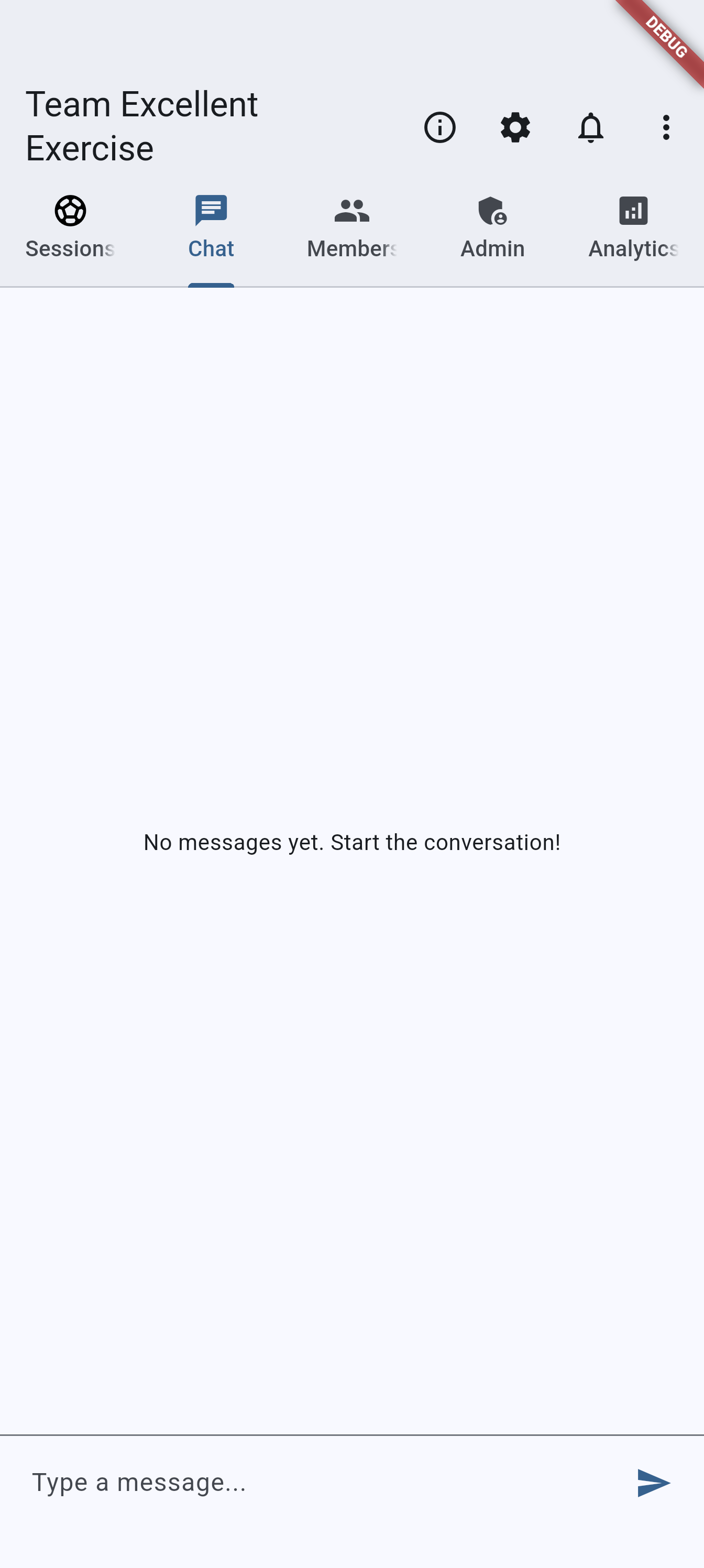
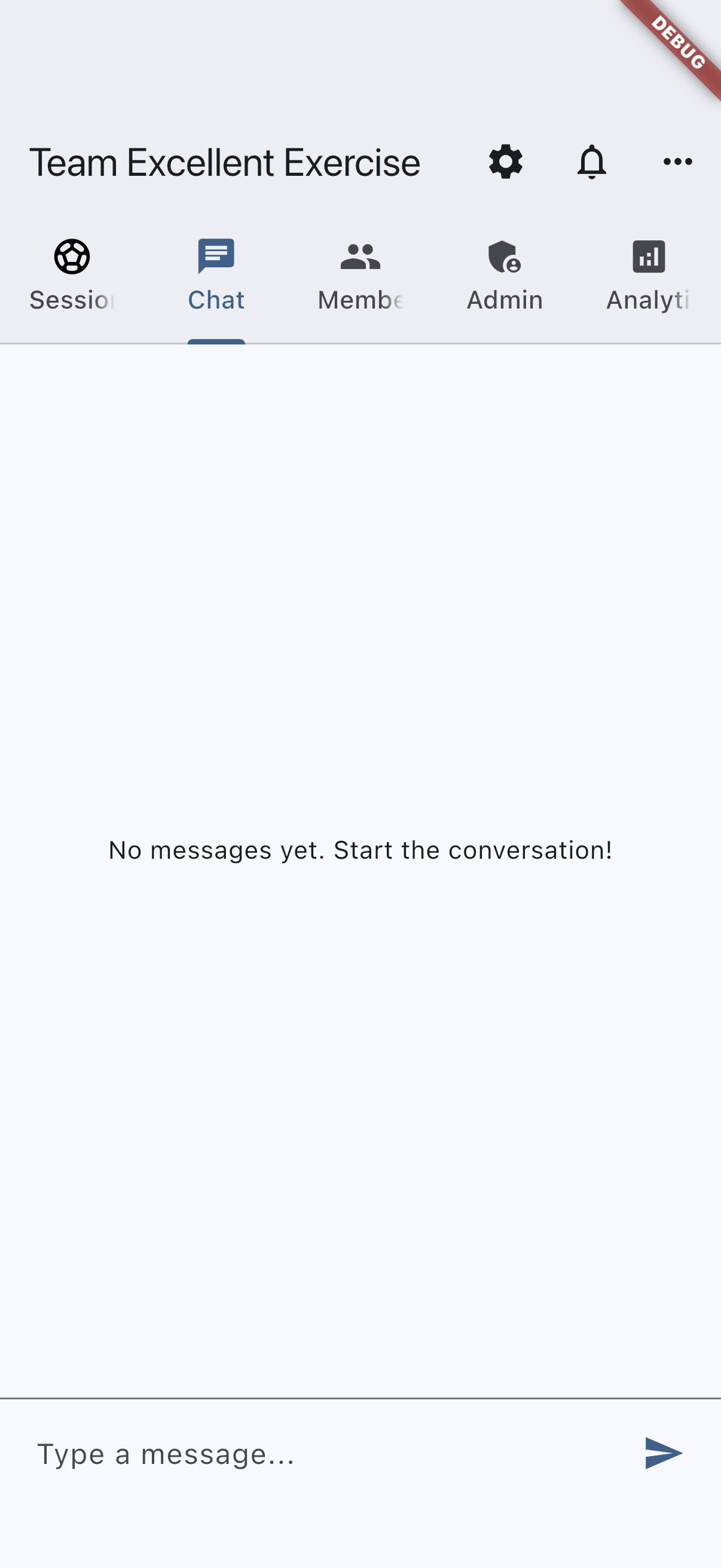
Recommended capture: the chat tab with a short conversation that clearly shows message ownership and timestamps.
announcements-android.pngannouncements-ios.png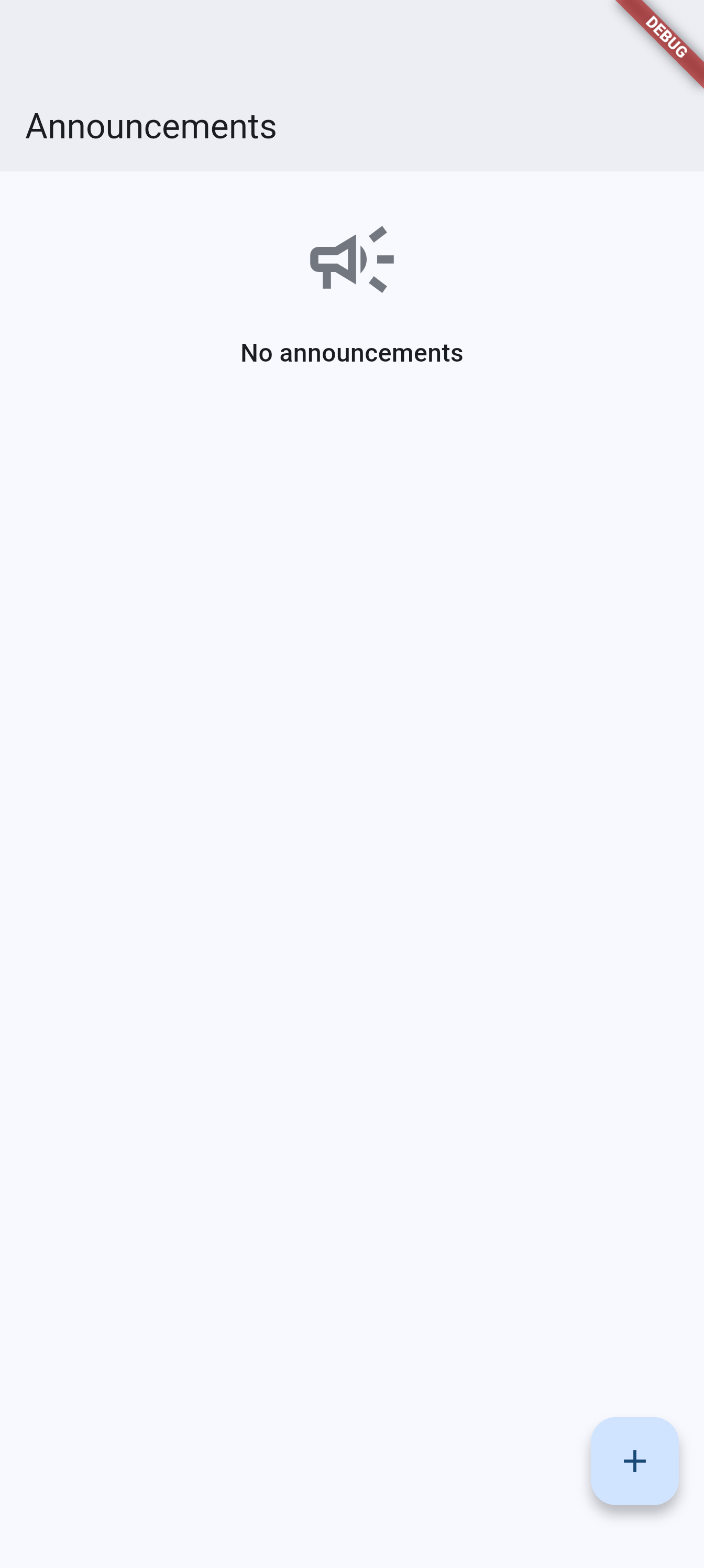
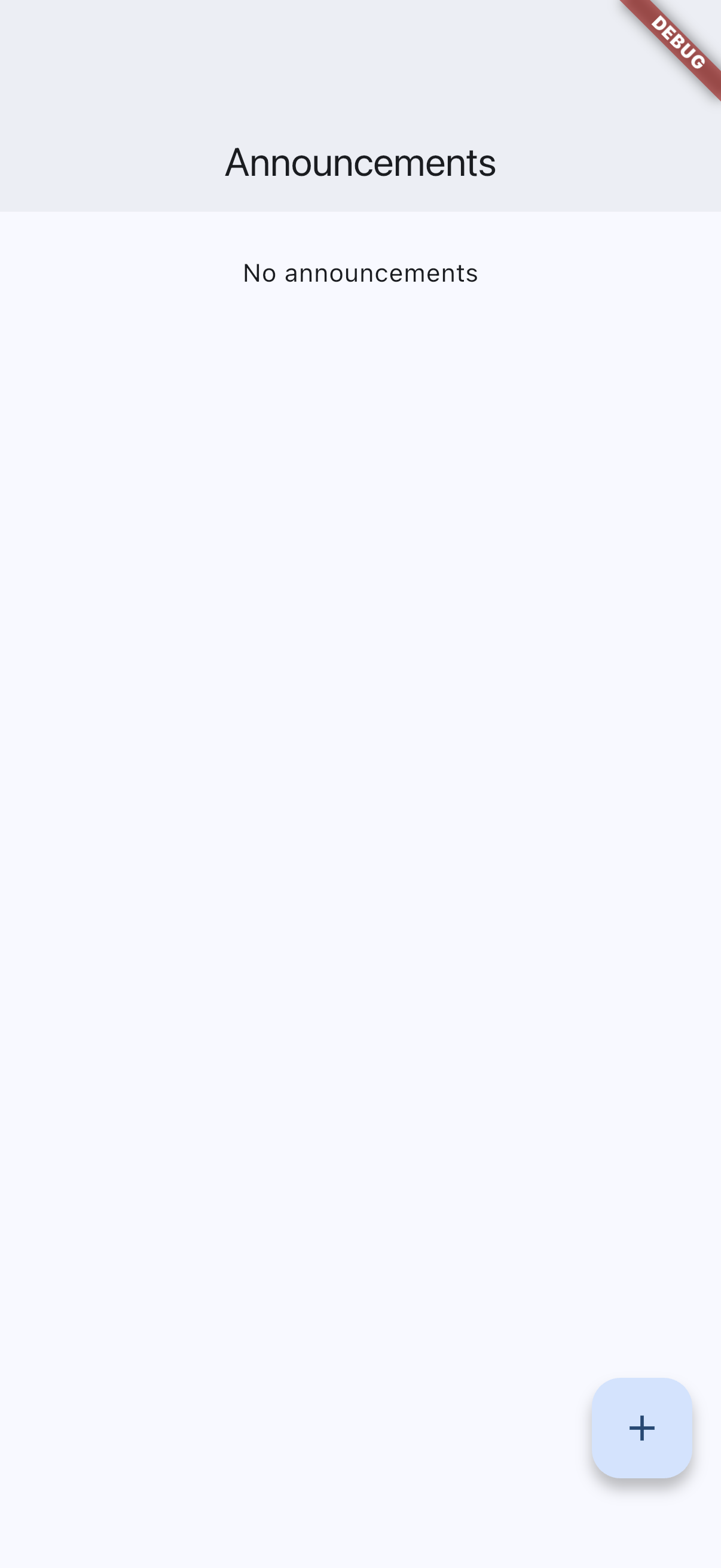
Recommended capture: one system announcement on the home screen and one group announcement management view for admins.
Related pages
- Activity planning for the cancellation announcement and the reason that goes with it.
- Teams and groups for what admins see and do after a message is reported.
- Home dashboard for where system announcements and restore actions appear.
- Notifications for push-notification controls related to chat and announcements.
- Plans and billing for the tier differences that affect chat history and announcement features.