
Activity planning
Members Group adminsActivity planning is the group feature for situations where the date is not fixed yet. Admins propose several date options, invited members vote on them, and the winning option can become a normal event.
Where to find it
Group admins Pro Business- Open a group.
- Go to the Admin tab.
- Select Activity planning.
- Use the create action to start a new planning.
This area is only available when the group’s effective plan allows activity planning. Pro teams can have 3 active plannings at once; Business teams as many as they like.
Create a planning
Group admins set up activity planning in three steps — four when the planning votes in turns (see below):
- Step 1 defines the basic info, such as title, description, icon, location, and attendance targets, plus the two settings that decide whether the planning can be discovered by others.
- Step 2 chooses who is invited, whether any members are required before the planning opens to everyone, how many of them must be able to come, and whether the remaining places are offered to the other members in turns.
- Step 3 adds the date options, voting deadlines, and the reminders that nudge members who have not voted yet.
In practice the three steps work like this:
- Step 1 is where admins set the visible planning details and attendance expectations, decide whether newly added group members are enrolled automatically (off unless you switch it on), and see whether the planning will show up in Discover.
- With a minimum attendance, a decision deadline can be chosen (Pro and Business). The event the planning becomes is then confirmed or cancelled against the minimum that long before it starts.
- With a maximum attendance, a waiting list can be switched on (Business). Without it, voting ends as soon as one date has that many yes votes. With it, voting carries on, and the people who said yes after the date filled up go on the event’s waiting list, in the order they voted.
- Step 2 is where admins split members into required and optional voters. Switch on Plan with required members to mark members as required; the slider beneath it sets how many of them must be able to attend for a date to stay in the running (all of them, unless you lower it).
- The step always opens with every member selected. When the group has member planning defaults, Apply defaults on the right of the Select all row replaces the selection with a list. With one list you confirm it; with several, you pick the list by its title. With Plan with required members on, it also marks the list’s required members; with it off, only the selection changes. With one list the link hides once used, and comes back when you switch Plan with required members on again.
- With a maximum attendance and a waiting list (Business), Offer any remaining place(s) to other members via waiting list makes the other members vote in turns: after the required members have voted, the next members in line are asked, as many at a time as there are open places, until one date is full. A member who does not answer within the waiting-list offer window loses the turn to the next in line. When a date fills up the event is created at once, and everyone still waiting for a turn goes on its waiting list in the order you sorted them. If the queue runs out before any date is full, the planning fails.
- Queue order (only with that switch on) is where you drag the optional members into the order they are offered a place. A new planning starts from the order in the member planning list you applied (or the only list, when there is one), with members who were never sorted alphabetically at the bottom.
- Step 3 is where admins add the candidate dates, set the duration, and add reminders under Deadlines & Reminders. Each reminder is a lead time — how long before the deadline members who have not voted yet are nudged — and a planning can carry up to 2 of them on Pro and up to 5 on Business.
Each planning needs at least 2 and at most 5 date options, so members have a real choice.
The date options are meant to be real alternatives, not placeholders. If only one date still makes sense, the planning is usually ready for activation instead of another vote round.
Member planning defaults
Group adminsThe icon next to the filter on the Activity planning list opens Member planning defaults: named lists to start step 2 of a new planning from, for example one per squad. The lists are sorted by title, and each shows how many members it marks as required or leaves out. Tap + to make a new list, tap a list to edit it, or use its menu to delete it. Pro teams can keep five lists; Business teams as many as they like.
Each list has a title, which must be different from the other lists’ titles (capital letters do not count as a difference), and two sections:
- Required — the members who are marked required when Apply defaults is used with Plan with required members on. They are always selected, so they have no checkbox.
- Other members — the checkbox says whether a member is selected when the defaults are applied. Everyone starts checked, including members who join later.
Drag a member across the Other members divider to move them between the sections. On Business, with waiting lists switched on, the whole list is also numbered: its order is the default queue when a planning votes in turns. Without waiting lists both sections stay in alphabetical order.
Changes are kept on screen until you tap Save. Leaving with unsaved changes asks whether to save or discard them. The defaults only affect new plannings — an existing planning keeps its own members.
Give a date its own details
Add date in step 3 opens a small wizard. The first step asks for the date and the time, prefilled with the last date you saved so a run of dates at the same time is one tap each, and the first date you add also carries an Advanced switch. Leave it off and a date is just a time: it uses the planning’s duration, description, and location. Turn it on and a second step asks for the date’s own description (required), duration, and location, prefilled with the planning’s values so only what differs has to be typed.
The first date decides the mode for the whole planning: the switch does not show again on later dates, and every date is either plain or has its own details. Removing every date brings the switch back. Tapping a date in the list reopens the wizard to edit it.
Dates with their own details may share a time. “Tuesday 18:00 at Hall A” and “Tuesday 18:00 at Hall B” are two real alternatives; two plain dates at the same time are still refused as duplicates. The details show on each date in step 3, on the voting screen, and on the screen where the admin picks the winning date. Wherever a venue was picked on the map, its line unfolds into a mini-map that opens full-screen — on all three of those screens, and on the planning’s own venue at the top of the voting screen.
Dates that clash with other events
A date that overlaps one of the team’s events shows a warning under it: Clashes with, followed by each event and when it runs. Every kind of event counts, Info events included, so a date on top of a school holiday or a closed hall is easy to spot. The warning shows in step 3, on the voting screen while voting is open, and on the screen where the admin picks the winning date. It never stops you: picking a clashing date as the winner only asks you to confirm first. Members are warned about published events; admins also about scheduled ones.
If a planning has required members, they vote first. A date only stays in the running when enough of them can make it — all of them, unless the admin lowered the number. Optional members can still open the planning, but they may need to wait until the planning opens for all invited members, or, when the planning votes in turns, until it is their turn.
Recurring plannings
Group admins BusinessThe Recurring tab next to the planning list is where a Business team sets up a rule that opens a planning by itself, on a schedule, instead of an admin creating each one by hand. It only appears on plans that include it — there is nothing to unlock, the tab itself is the offer. A Business team that would rather not use it switches off Recurring activity planning under Settings → Features → Planning; with it off the tab disappears.
A rule follows one of two anchors:
- Recurring session — a session on the team’s own recurring schedule. A planning opens ahead of each upcoming occurrence.
- Calendar feed — an imported calendar subscription. A planning opens ahead of each occurrence the feed brings in.
The wizard that creates or edits a rule has up to four steps. Schedule (only when the rule was not started from a session or feed’s own menu) picks the anchor; once a rule exists it cannot be re-pointed to a different one, since that would strand the plannings it already produced. Activity Info is the same step used for a one-off planning: title, icon, location, and attendance targets.
Members works the same way as a one-off planning’s step 2 for the required- member switch, the attendance slider, and the queue-voting switch — but who is invited is not chosen here. Instead, a rule points at one of the team’s member planning defaults, and everyone that list currently invites is listed underneath, in the order the list applies to a new planning: split into Required and Other members while Plan with required members is on, in one list otherwise, and numbered when the rule also votes in turns. Because every planning the rule ever opens reads the list fresh at that moment, the roster here is a preview, not something to edit — adding or removing someone is done from the member list itself, and every future planning picks it up automatically.
Timing sets the activity’s duration, the team’s planning hours the vote has to respect, how far ahead of each occurrence the planning opens, and its deadlines and reminders. Its Date options are offsets rather than dates: a rule holds 2 to 5 of them, each measured in minutes before or after the session’s start or its end — “30 minutes after the end”, say. For every session the rule plans, each offset becomes one date option on that planning, and together with the team’s planning hours they decide which candidates a member gets to vote on: an offset that lands outside those hours is dropped, and a session left with fewer than two is not planned at all. A preview panel shows what the next few plannings the rule would produce actually look like, including any that would be skipped, before anything is saved.
Once saved, a rule shows up in the Recurring list with its own card: Pause stops it from opening any further plannings without deleting it, and Delete removes it for good. A rule that cannot run — its member list was deleted, or its audience dropped below what it needs — shows the reason on its card instead of failing silently.
Editing or deleting a member planning default that a recurring rule points at asks for confirmation first, because it changes what that rule invites — or stops it from running at all — from then on. Saving and deleting a list are never refused outright; the rule that depended on it simply reports the problem on its own card.
Public plannings and Discover
Group admins BusinessStep 1 carries a Public switch next to the icon picker. New plannings are public by default. Turning it off keeps the planning out of Discover on the home screen and changes nothing else — invited members still see it, vote on it, and get reminders exactly as before.
The switch only appears when the group could reach Discover at all, so a private group, or one without a location, never sees a control that would do nothing. On Free and Pro it shows with a padlock: making a planning private is a Business feature.
A date with a venue of its own counts too: Discover places the planning at whichever of its dates’ venues is nearest the person looking, and shows that date. A planning whose dates all have their own map-picked venues is findable even without a venue of its own — though the checklist on step 1 only knows about the planning’s own location, since the dates are not entered yet.
Auto-add new members is part of it
The Auto-add new members setting also lives on step 1, right above the Discover summary. It is not only about convenience: it is what makes a discovered planning worth listing. Someone who finds a planning nearby and joins the group is enrolled in the vote automatically, and — once the planning has been activated — added to the session it created. With the setting off, a newcomer would find the planning and then have no way in, so the planning stays out of Discover.
Discover status on step 1
The bottom of step 1 shows whether the planning will actually appear, and if not, which condition is missing:
- Discoverable — everything below is satisfied.
- Not discoverable — private — the Public switch is off.
- Not discoverable — new members must be added automatically — the Auto-add new members switch is off.
- Not discoverable — no location set — the planning has no location.
- Not discoverable — pick the location on the map — the location was typed by hand, so it has no map position.
- Not discoverable — the group is private or has no location — the group itself does not qualify.
- Not discoverable — the group must auto-accept join requests — someone who finds the planning has to be able to join right away, not wait for approval.
The status updates as settings are changed, before anything is saved.
When the planning is activated, the session it creates inherits this choice, so a public planning stays visible in Discover as a real session with a real date.
Vote on proposed dates
MembersMembers see active plannings on the home dashboard and inside the relevant group. The planning detail screen lets them:
- review the description, location, and attendance rules,
- see a date’s own description and location, when the admin gave it any,
- switch between a list and calendar view of the proposed dates,
- mark each date as suitable or not suitable,
- see when a date is already full and a yes vote would put them on the waiting list,
- and see when the current voting phase ends.
Admins can also vote on behalf of managed members when needed.
A team’s Show participants setting does not apply here: comparing who can make which date is the whole point of a planning, so the votes stay visible. A member who has set themselves Hidden in the team is still counted, but without their name — their vote joins a “hidden” tally on each date instead. An admin choosing a date therefore still sees that four people can make Tuesday, even where one of them is not named. Admins see every voter by name.
When the planning is still in its required-member phase, optional members can usually open the planning but may not be able to submit votes yet. Once the planning opens for all invited members, everyone in the planning can use the same voting screen. When the planning votes in turns, the screen says so, and tells you by when to answer once it is your turn. The planning’s reminders then count back from the end of your own turn, so you get them before your turn closes rather than before the planning’s voting deadline.
Understand the outcome
After voting, the planning can move through a few different outcomes:
- it can open from required-only voting to all invited members, or to voting in turns,
- it can wait for an admin to choose the final date,
- it can activate into a normal event,
- or it can be disabled or cancelled if no date meets the requirements.
Once a date is activated, the app creates a regular event from that selection. From that point on, attendance and participation continue through the generated event.
If the planning has a waiting list and more people said yes than there are places, the earliest yes votes get the places and everyone after them is put on the waiting list in voting order. Each of them gets a notification with their place in the queue, and is offered a place when one opens up, like on any other event with a waiting list.
The generated event starts as an activity-planning event for the invited planning members, so the follow-up attendance happens in the normal event flow without reopening voting.
Choose the winning date, or cancel
Group adminsWhen the planning reaches the point where an admin must decide, the admin opens the Select winning date screen from the planning card or the planning list. It lists every date option still in play, sorted by how many members voted for it, with the vote count beside each one, and a date’s own description and location beneath it when it has them.
Cancelling is the last option in that same list, below the dates. That is deliberate: the admin is answering one question — which date, or none of them — so both answers sit in the same place, and picking one clears the other. The button at the bottom follows the selection and says what it will do.
If a date is chosen, confirming activates the planning and creates the event. Members are notified through the new event, so nothing further is needed. A date with its own details becomes an event with that description, duration, and location; a plain date takes the planning’s.
If Cancel is chosen, the option expands with two things:
- Reason — optional free text explaining the decision. It is included in the cancellation notification, and it stays on the planning afterwards, so a member who has already dismissed the notification can still open the planning and read why it was called off.
- Add group announcement — posts the cancellation to the group’s announcements, where it stays until a member dismisses it or an admin deletes it. This is offered on cancellation only: a chosen date creates an event that announces itself, so an announcement there would just repeat the news.
Cancelling notifies every invited member and cannot be undone, so the app asks for confirmation once before it goes through.
Manage active plannings
Group adminsAdmins can return to the planning list to:
- review current status,
- edit active plannings,
- cancel a planning that is no longer needed, with the same optional reason and announcement choice described above,
- delete a planning outright,
- and choose the winning date when the app asks for an admin decision.
Deleting a planning that has already been activated asks one extra question first. Activation creates a session, and that session outlives the planning unless it is removed as well, so the app offers both answers rather than picking one:
- Keep the session — the planning is deleted and the session stays, exactly as it is, on everyone’s agenda and calendar. From then on it behaves like any other session: members already on it stay on it, and an admin manages its participants directly. The one thing that stops is the planning’s automatic invitation of new team members, so anyone joining the team afterwards has to be added to the session by hand.
- Delete the session too — the session goes with the planning, taking its attendance, waiting list and check-ins, and everyone who was invited is notified that it is gone.
Neither can be undone. A planning that never reached activation, or whose session has already been deleted, has nothing to ask about and goes with the ordinary delete confirmation.
Admins can also keep using the planning list to see whether a planning is still waiting for required members, already open to all, waiting for final admin selection, or already resolved.
The list shows active plannings by default. Use the filter icon in the top bar to switch between Active, Completed, and All. The icon stays highlighted whenever the list is narrowed, so it is clear when something is being hidden.
The home dashboard and the group’s event area also show activity-planning cards so members can find open voting quickly.
activity-planning-select-date-android.pngactivity-planning-select-date-ios.pngRecommended capture: the Select winning date screen with the cancel option selected, showing the reason field and the announcement toggle expanded below it.
activity-planning-list-android.pngactivity-planning-list-ios.png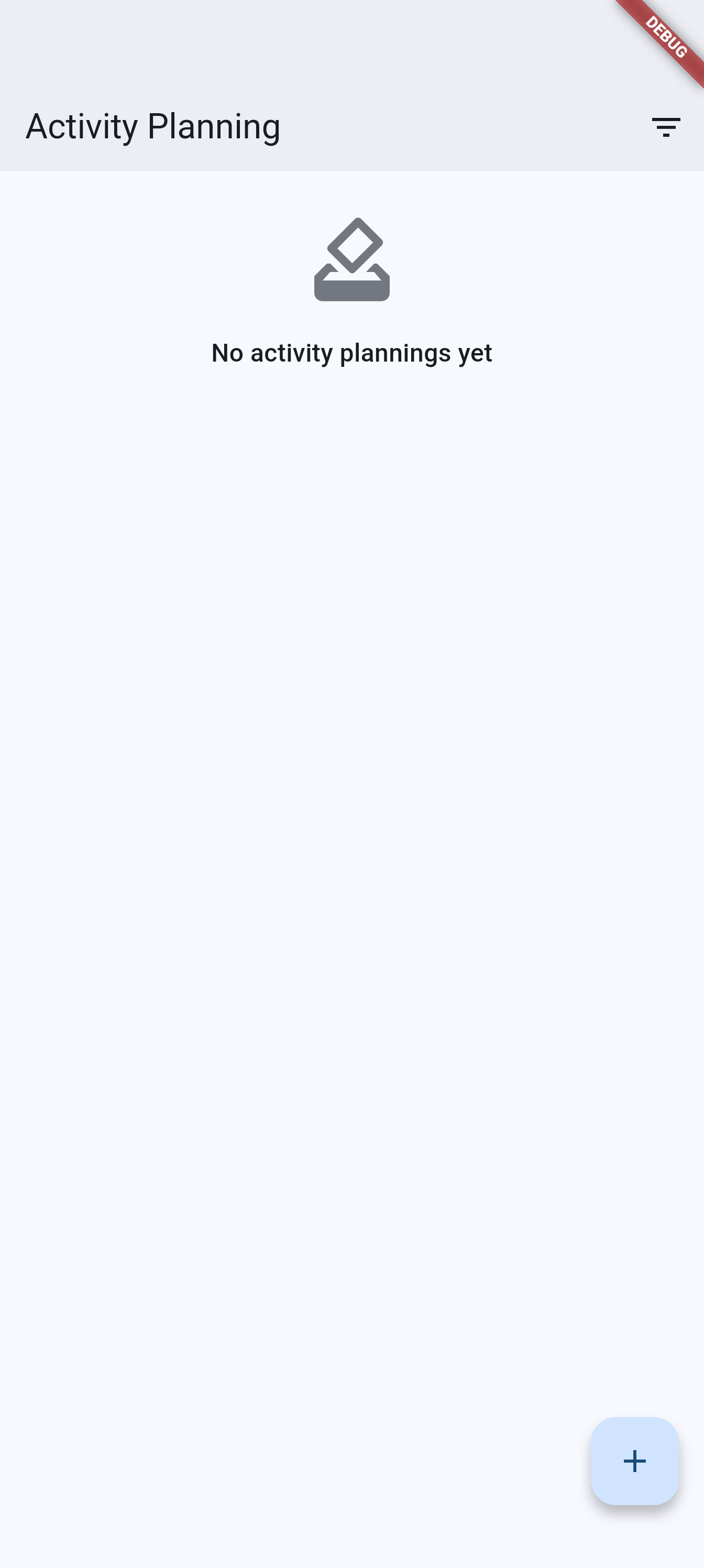
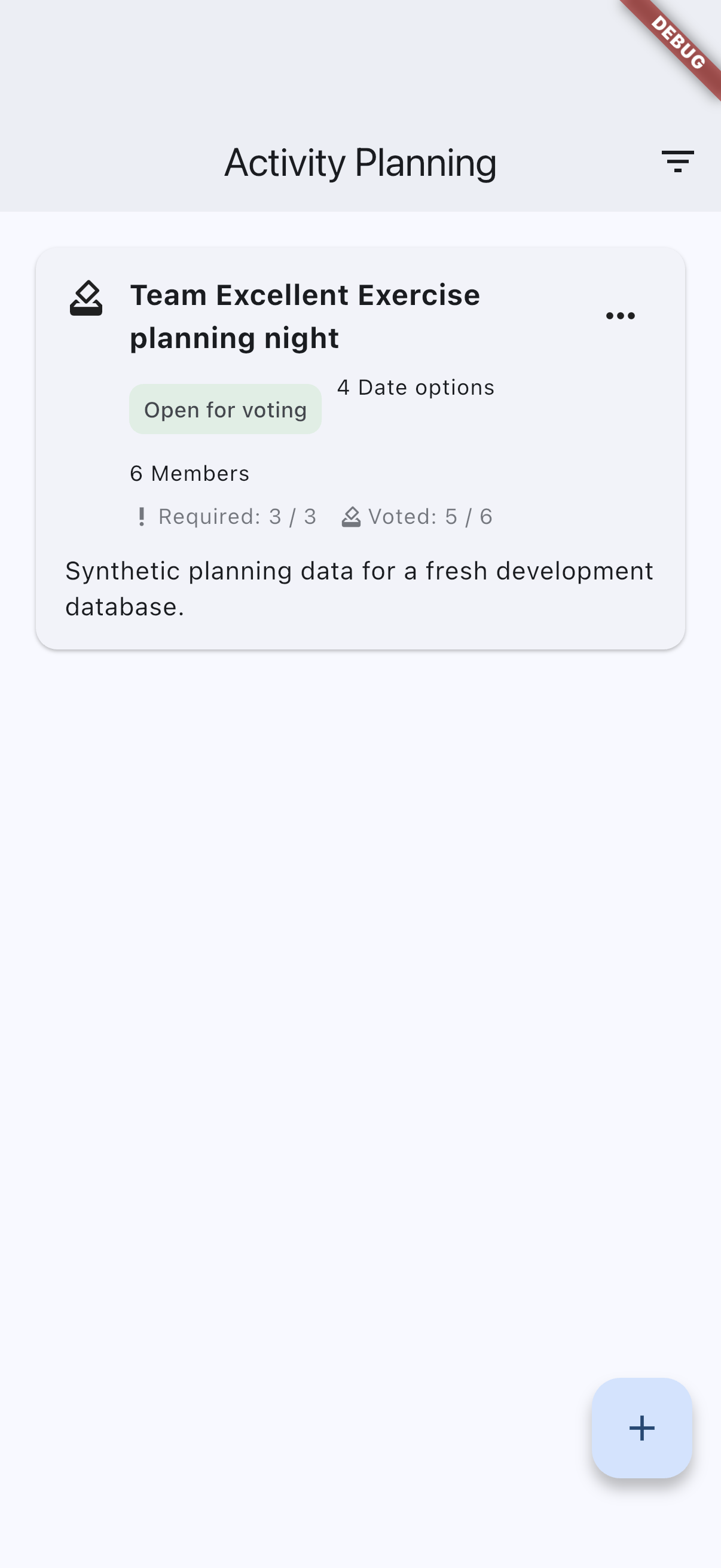
Recommended capture: the activity planning admin list with the top-bar filter icon and a few plannings in different states.
activity-planning-voting-android.pngactivity-planning-voting-ios.png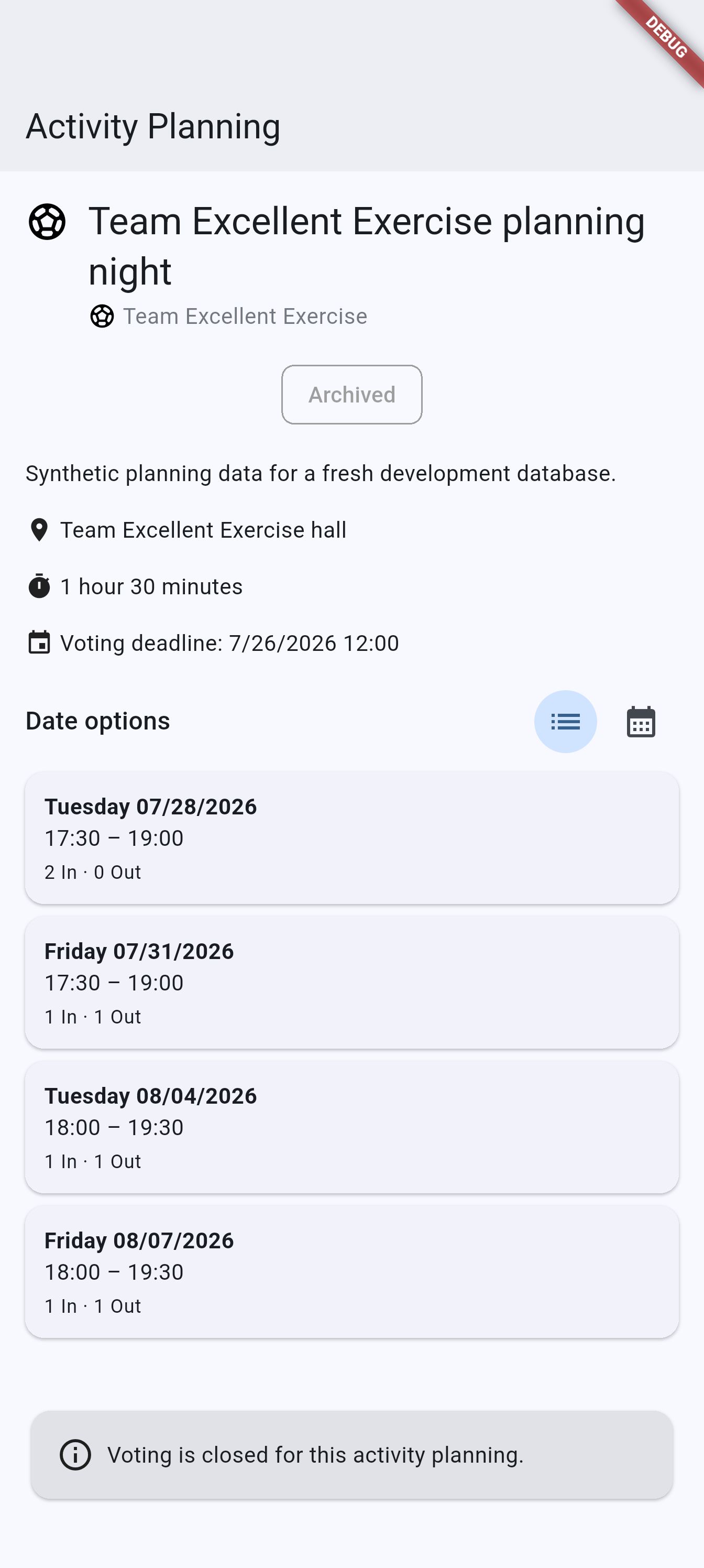
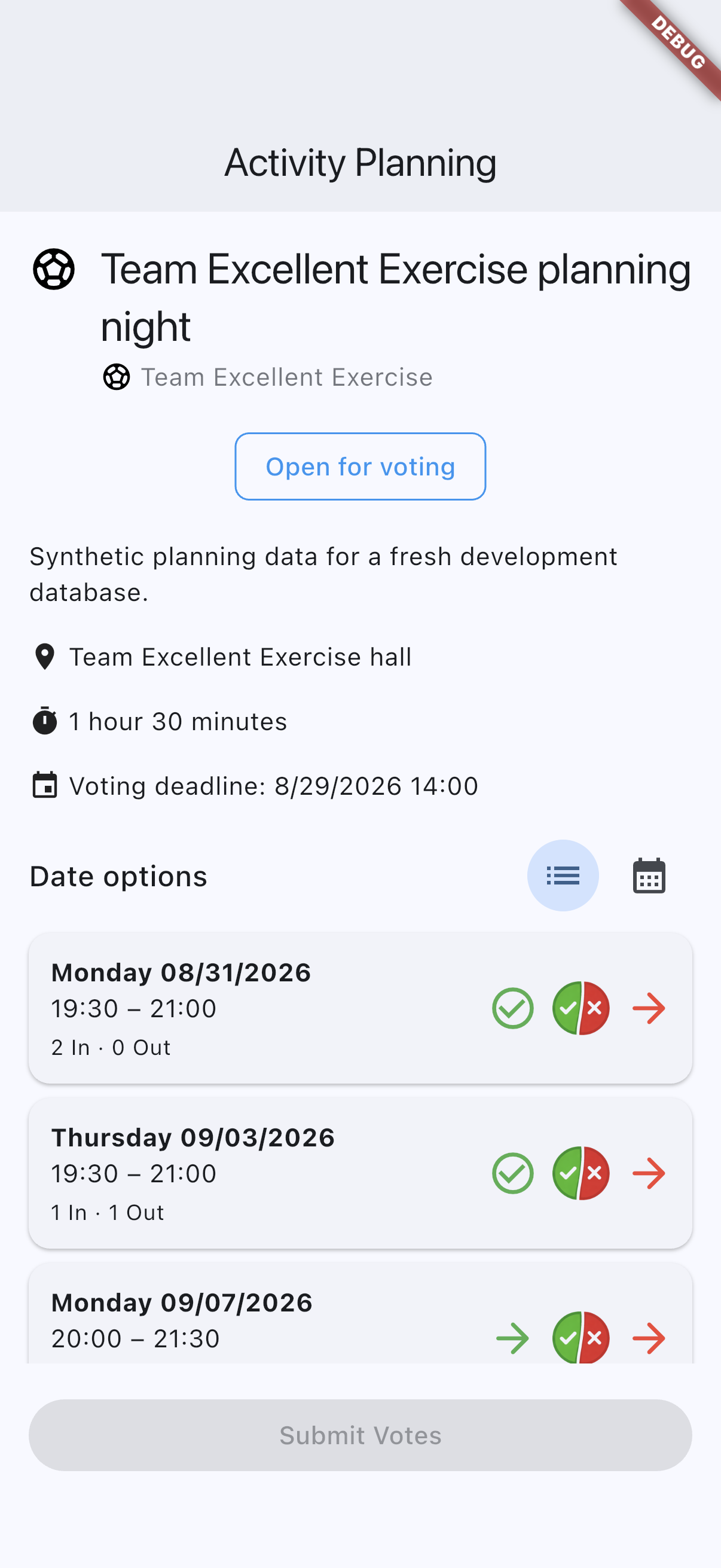
Recommended capture: the member voting screen with several date options and the list/calendar toggle visible.
Related pages
- Teams and groups for the group Admin tab where planning is managed.
- Events and attendance for the regular event flow used after a winning date is activated.
- Analytics for planning outcomes, voting engagement, and date preferences.
- Plans and billing for the Pro and Business availability of this feature.