Calendar subscriptions
Members Group adminsCalendar subscriptions let a group import events from an external calendar feed. This is useful when the schedule already exists somewhere else and should appear inside InOrOut without being recreated manually.
Where to find it
Group admins Pro Business- Open a group.
- Go to the Admin tab.
- Select Calendar subscriptions.
- Use the create action to add a new feed.
This feature is available only on groups whose effective plan allows calendar subscriptions. Pro teams keep up to 3 feeds; Business teams as many as they like. If the plan later drops to fewer feeds than the team has, the oldest feeds keep syncing and the ones past the limit stop, showing a sync error until you remove some.
Add a subscription
The subscription wizard has two main steps:
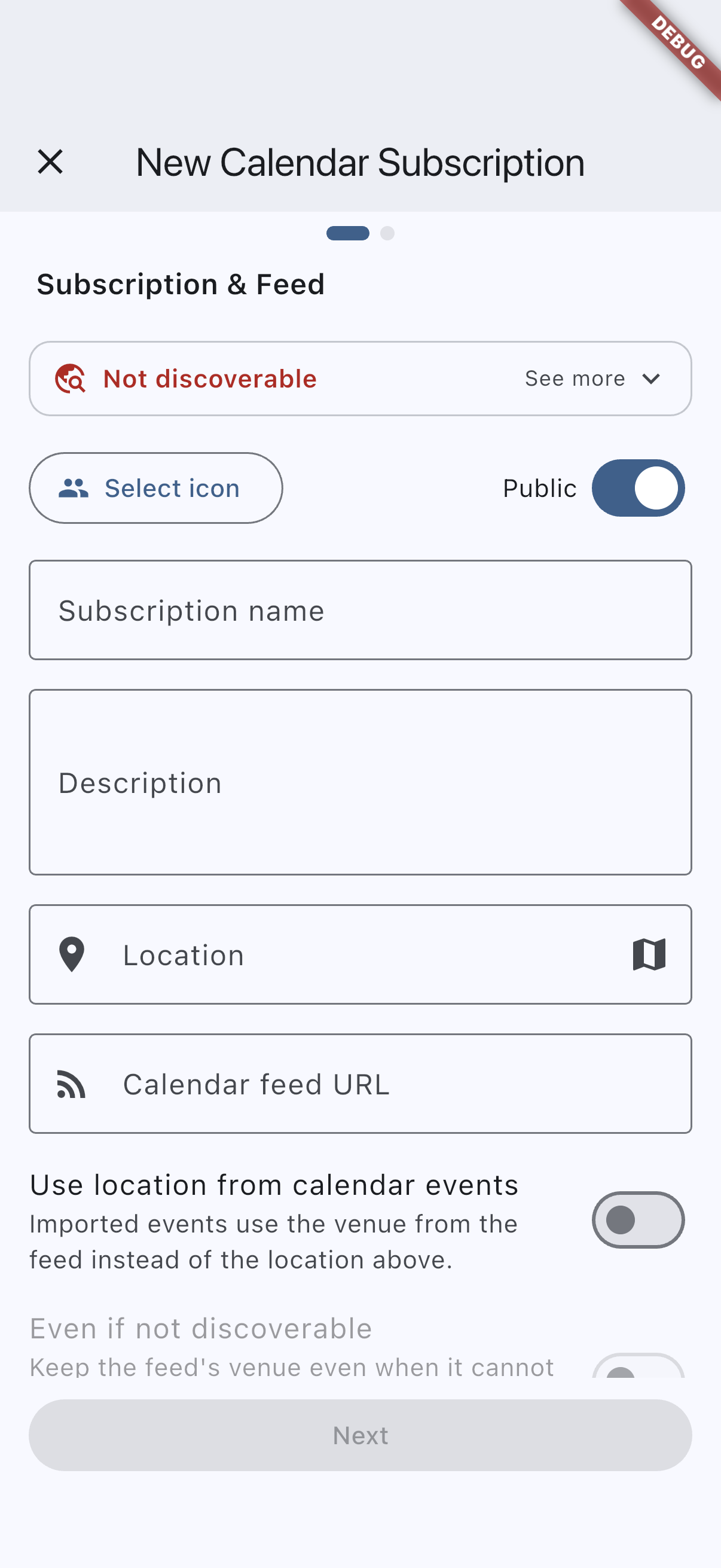
- Step 1 defines the subscription title, optional description, icon, color, location, and feed URL.
- Step 2 previews the feed events so the admin can filter them and choose which ones to import.
In practice the setup flow works like this:
- Step 1 is where the admin defines how the imported events should look inside the group and which feed the app should read.
- Step 2 is where the admin previews the feed, applies title or date filters, and confirms which future entries should be imported.
Admins can use title filtering and a latest-date limit to keep the import focused on the events that matter for the group. The Title filter dropdown picks how the filter value is matched — Title contains, Title starts with, Title ends with, Title exact match, or Title regex for a regular expression such as ^Team.*Meeting$ — and Maximum event date stops the import at a chosen day so a feed that runs years ahead does not fill the group’s calendar.
The preview step is there to avoid importing a noisy full feed when only one team, age group, or date window is relevant.
If the team or group already has a location, a new subscription starts with that address filled in, the same way a new session does. Change it if the imported events happen somewhere else, or clear it if they have no fixed venue.
Step 1 also decides whether the imported events take responses at all, and sets their attendance rules — see below.
The feed must be a public HTTPS iCal or ICS URL that the app can reach. If the feed cannot be fetched or parsed, the subscription cannot be saved until the address or feed data is corrected.
Choose the event type: Activity or Info
Group adminsEvent type on Step 1 decides what kind of event the feed produces:
- Activity (the default) — each entry becomes an activity members can join or decline, with the attendance settings below.
- Info — each entry becomes an Info event: on the calendar so the team does not plan over it, but taking no responses. Use it for a school-holiday calendar, a venue’s closure dates, or a club-wide fixture list you only want to see. The attendance, guest and waiting-list settings are hidden while Info is chosen.
Like Import new events as, the choice only applies to events imported after it is changed. Events already in the group keep their type, so responses members have already given are never lost. Imported Info events still get the usual friendly reminder the day before.
Set attendance, guests, and a waiting list
Group adminsAt the bottom of Step 1, a subscription can carry the same attendance settings a session does. They apply to every event the feed imports, not to one of them, because imported events are managed by the sync rather than edited individually.
- Minimum and maximum attendance. A maximum turns the imported events into limited-capacity events: once they are full, further members are turned away. A minimum is informational and notifies admins if attendance drops below it.
- Guests allowed. Off by default, as on every event. Requires Pro or higher, and is hidden when the team has switched guests off. Turning it on lets members bring guests, up to the per-participant limit chosen beside it.
- Waiting list. Available once a maximum is set. When an imported event is full, the next member to join is queued instead of refused, and the first place is offered automatically when a spot frees up.
Changing any of these updates the events the subscription has already imported as attendance events, so the whole feed stays consistent; Info events are left without them. Clearing the maximum switches the waiting list off and lets anyone queued know their place has gone.
Minimum and maximum attendance work on every plan. The guests toggle and the configurable guest limit beside it require Pro or Business, and waiting lists require Business. Below those plans the controls are shown but locked, so it is clear what an upgrade would add. See Plans and billing.
Choose how new events arrive
Group adminsThe last setting on Step 1 is Import new events as, and it decides what happens the moment the feed produces something new:
- Publish (the default) — the event goes straight to the group, exactly as imported events have always behaved.
- Draft — the event is held back. Only admins can see it, and it stays out of members’ lists and calendars until an admin publishes it.
Choose Draft for a feed you do not fully trust to be relevant — a club-wide fixture list where only some entries concern your team, for example. Every sync then hands the admins a short queue to work through instead of announcing entries to everyone.
The setting only applies to events imported after it is changed. Events already in the group keep the state they have, so switching a running feed to Draft does not retract what members can already see.
When a sync imports drafts, the group’s admins get a notification telling them how many events are waiting. Members are told nothing — there is nothing they can open yet.
Review, publish, or discard imported events
Group adminsEach row in the subscription list has a calendar icon to the left of its menu. It opens everything that subscription has produced: the events it imported, the ones an admin removed, and any feed entry the next sync has not picked up yet. Upcoming events come first, then past ones.
A dot on that icon means the feed has events waiting on a decision. The same signal is repeated where it can be seen without opening the Admin tab: the Calendar subscriptions row carries the number, and the team’s card on the home screen carries a follow-up mark.
Rows are labelled only when they are not simply live:
- Draft — imported and waiting. Its menu offers Publish, which releases it to the group, and Discard, which deletes it.
- Cancelled — the occurrence was cancelled, either by an admin or because the entry left the feed. The reason is shown underneath.
- Deleted — an admin removed it. It stays removed: later syncs will not import it again.
Tapping a live row opens the event exactly as it opens from a calendar or list. Tapping a deleted one offers Restore, which imports it from the feed again — in whatever state the subscription imports in, so a feed set to Draft restores a draft. Restore is unavailable once the feed no longer offers that entry, because there is nothing left to import from.
A draft can also be published or discarded from the event’s own screen, through the three-dot menu.
Discarding an imported event deletes it and records that it was removed on purpose, so no later sync brings it back. Bring it back yourself with Restore, or by selecting its entry again in Step 2 of the wizard.
Choose where the imported events happen
Group adminsThe location on the subscription is the venue every imported event gets. For most feeds that is the right answer: the whole schedule happens at the same ground, so setting it once beats repeating it.
BusinessBusiness teams can let the feed decide instead, using two switches at the bottom of Step 1:
- Use location from calendar events — each imported event takes the venue written in the feed entry rather than the one on the subscription. Use this for an away-fixture list, where every entry is somewhere different.
- Even if not discoverable — what to do when the app cannot place the feed’s venue on a map. This one only becomes available once the switch above is on.
That second switch matters because a calendar feed usually writes its venue as plain text. A feed that carries map coordinates with its entries is placed straight from those, with no lookup; only an entry without them has its address looked up, and a looked-up address is remembered so the same one is not looked up again. Sometimes the lookup cannot place it — “behind the clubhouse” is a real place to a member and nowhere at all to a map.
- Off (the default) — the app falls back to the subscription’s own location for that event, so it still has a point on the map and can still be found in Discover.
- On — the app keeps the feed’s own wording even though the event will have no point on the map. Those events will not appear in Discover.
Turn the second switch on when the feed’s phrasing is what members need to read, and leave it off when being findable matters more.
Show imported events in Discover
Group adminsImported events can turn up in the Discover tab on the home screen for people who are not members yet, on the same terms as ordinary sessions and activities. Events imported as Info never do.
BusinessBusiness teams get a compact Public switch on the right of the icon row in Step 1. It covers every event the subscription imports: turning it off keeps the whole feed out of Discover without making the team private. On Free and Pro the switch shows a lock icon.
The switch only appears when the team could reach Discover at all — public, pinned to a point on the map, and auto-accepting join requests. If the team can never be discovered, there is nothing for the feed to opt out of.
Business teams also see a Discover status line at the bottom of Step 1. It describes the subscription’s own location — the venue an imported event falls back to whenever the feed has nothing usable to offer:
- Discoverable — every condition is met.
- Not discoverable — the team is private or has no location — fix this in the team’s settings; see Teams and groups.
- Not discoverable — the team must auto-accept join requests — someone who finds an event has to be able to join in time to attend.
- Not discoverable — private — the Public switch above is off.
- Not discoverable — no location set — the subscription has no location of its own.
- Not discoverable — pick the location on the map — an address was typed by hand, so it has no coordinates to search by.
Individual events can still differ from that line. An event whose feed venue was placed on the map is discoverable at its own address, and one kept unplaceable by the second switch is not discoverable at all.
Understand sync behavior
Imported calendar events do not stay static. The subscription keeps them aligned with the source feed:
- the app imports selected future events,
- automatic sync runs once a day, in the morning (07:00 server time), and sends a notification when something changed,
- admins can also trigger a manual sync,
- and removed feed entries can disappear or be cancelled in InOrOut as the source changes.
The subscription list helps admins monitor the current state, including whether the latest sync succeeded.
If the source feed changes titles, times, or other imported details, the next sync updates the existing imported events instead of creating separate duplicates for the same external item.
An event an admin removed by hand — discarded from the events screen, deleted from the event’s own menu, or unselected in Step 2 — is remembered as removed. The sync leaves it alone from then on, even while the feed keeps offering it.
What members will see
MembersImported entries show up in the normal event views for the group, including lists and calendar surfaces. Members can open them like other events, but the date and time come from the external source.
Because the source calendar controls the schedule, imported events are read-only inside the app. Admin changes happen through the subscription itself rather than through the event’s normal edit flow.
Members still join and decline them normally, unless the subscription imports them as Info. If the subscription sets a maximum, the usual participant count and full-event behavior apply, including the waiting list when it is switched on.
That means members still discover these items from the same group lists and calendars, but admins manage the source feed instead of editing each imported event one by one.
Manage a subscription
Group adminsAdmins can return to the subscription list to:
- edit the subscription settings,
- change filters or imported event selection,
- run a manual sync,
- and delete a subscription that is no longer needed.
The filter icon in the top-right corner narrows the list to the feeds that need attention: Sync failed, or Drafts waiting for feeds with imported events still to be published or discarded.
The subscription list is also where admins check sync status after a feed problem. If the latest sync failed, this is the first place to confirm whether the feed URL or the external calendar content needs attention.
Changing the location, or either of the venue switches, applies to the events that were already imported as well as to new ones — you do not have to re-import a feed to move it. The same goes for the Public switch.
Individual imported events are removed from the subscription’s own events screen, or from the event’s three-dot menu. They stay removed.
On Business, a feed can also anchor a recurring activity planning: Add recurring activity planning in the feed’s own menu opens a planning ahead of every event the feed brings in — see Recurring plannings.
Deleting the subscription also removes the imported events that belong to it.
calendar-subscriptions-android.pngcalendar-subscriptions-ios.png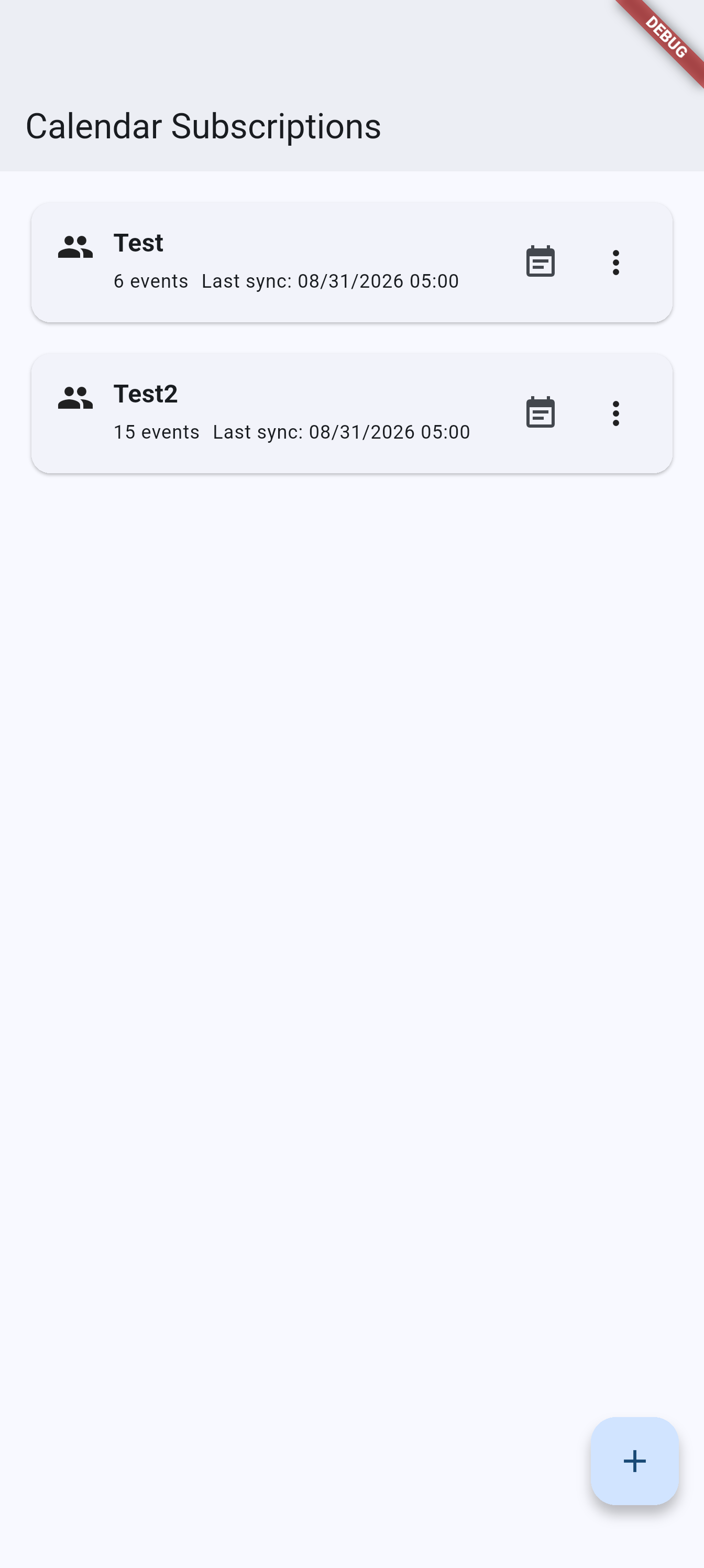
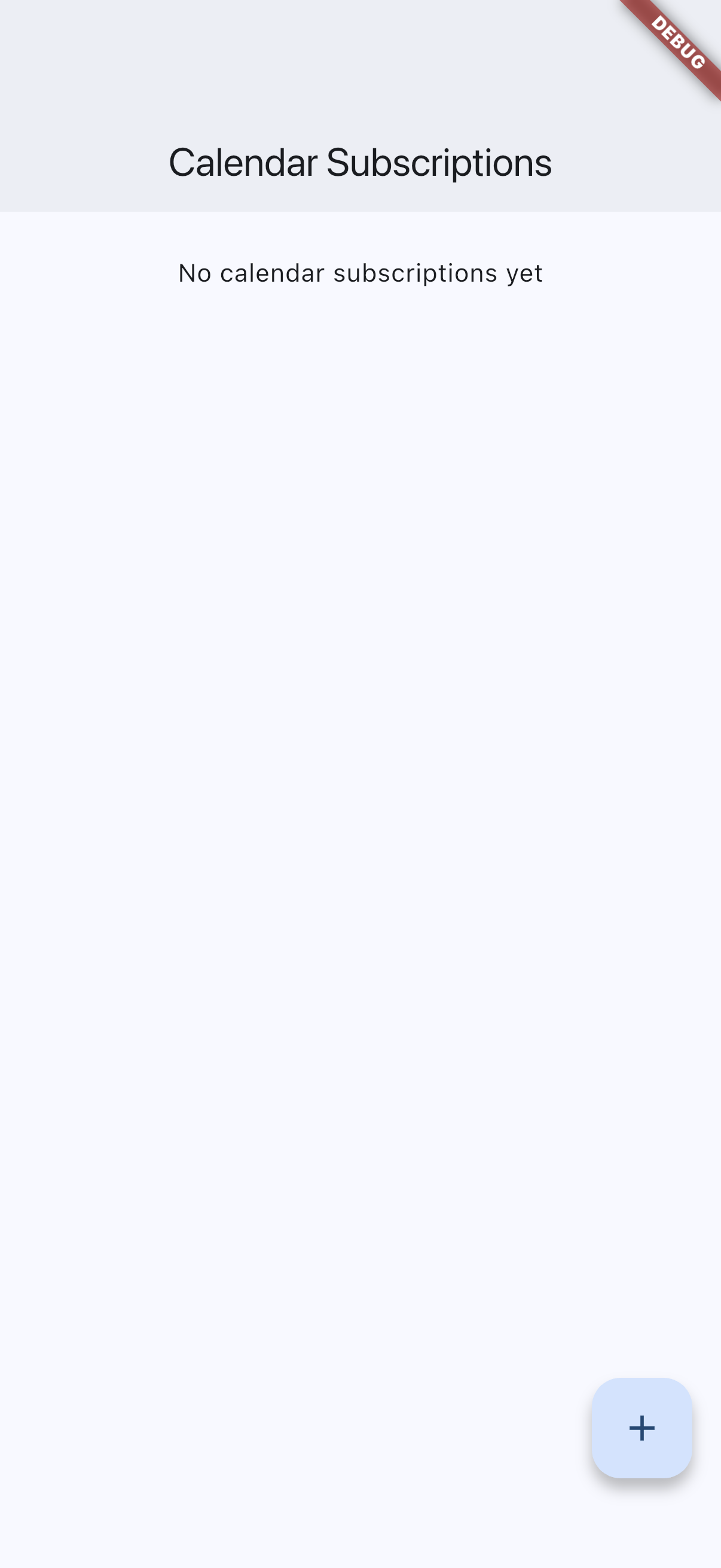
Recommended capture: the calendar subscriptions list with at least one active subscription and a visible manual sync action.
calendar-subscription-wizard-android.pngcalendar-subscription-wizard-ios.png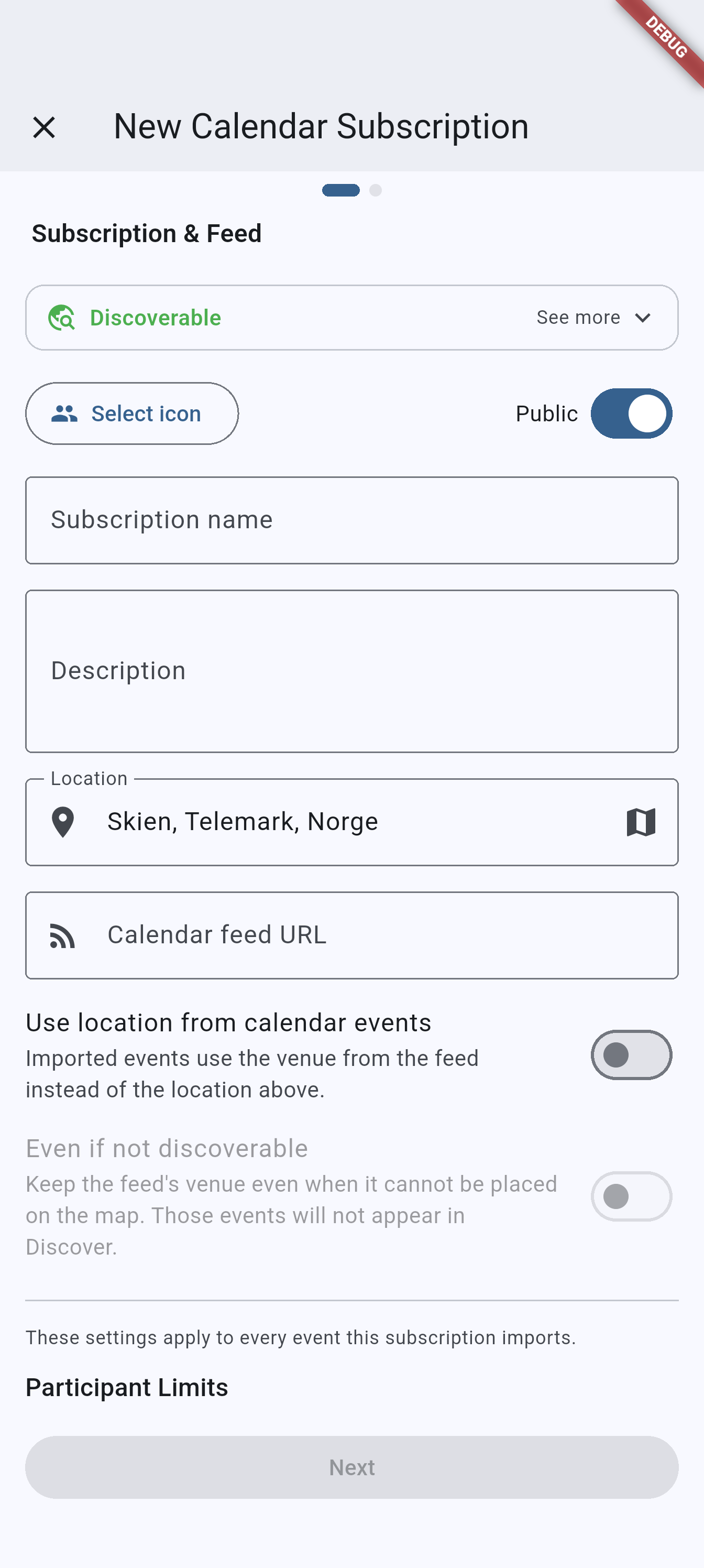
Recommended capture: the subscription wizard on the event-selection step with filters and preview rows visible.
Related pages
- Teams and groups for the group Admin tab where subscriptions are configured, and the team location new subscriptions start from.
- Events and attendance for the normal event views where imported items appear.
- Home dashboard for the Discover tab where imported events can be found.
- Activity planning for the recurring planning rule a calendar feed can anchor.
- Plans and billing for the tier rules that unlock calendar subscriptions.